Setup NAS With Raspberry Pi 5
This NAS setup guide references this how-to-article.
Hardware Ready
Raspberry Pi 5 8GB RAM + Active Cooler + 27W USB-C Power Supply
Kingston DataTraveler Kyson USB-A 256GB
Western Digital Red 3.5-inch 2TB HDD x 2 (WD20EFRX)
UNITEK - 2 Bay External Hard Drive Enclosure (S1308A01-UK)
Software Ready
OpenMediaVault 8 on Raspberry Pi OS Lite 64-bit
Installed openmediavault-md plugin
Assuming the HDDs are attached to the Raspberry Pi and OpenMediaVault is already installed, the HDDs should be displayed in OMV > Storage > Disks
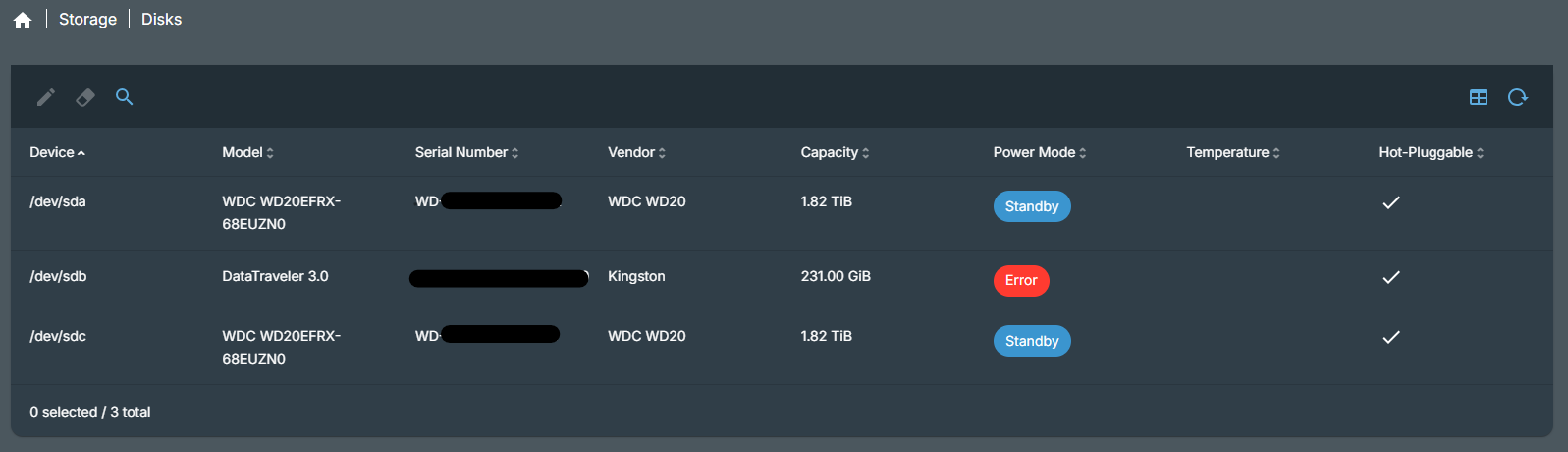
Check the storage devices by lsblk command
user@TechDev-RPI5:~ $ lsblk -o NAME,SIZE,FSTYPE,TYPE,MOUNTPOINT
NAME     SIZE FSTYPE TYPE MOUNTPOINT
loop0      2G swap   loop
sda      1.8T        disk
sdb      231G        disk
├─sdb1   512M vfat   part /boot/firmware
└─sdb2 230.5G ext4   part /
sdc      1.8T        disk
zram0      2G swap   disk [SWAP]
Once confirmed the storage devices are connected, build the software RAID array in Linux
user@TechDev-RPI5:~ $ sudo mdadm --create --verbose /dev/md0 --level=1 --raid-devices=2 /dev/sda /dev/sdc
[sudo] password for user:
To optimalize recovery speed, it is recommended to enable write-indent bitmap, do you want to enable it now? [y/N]? y
mdadm: Note: this array has metadata at the start and
    may not be suitable as a boot device.  If you plan to
    store '/boot' on this device please ensure that
    your boot-loader understands md/v1.x metadata, or use
    --metadata=0.90
mdadm: size set to 1953382464K
Continue creating array [y/N]? y
mdadm: Defaulting to version 1.2 metadata
mdadm: array /dev/md0 started.
In OMV > Storage > Multiple Devices, should see the newly created array
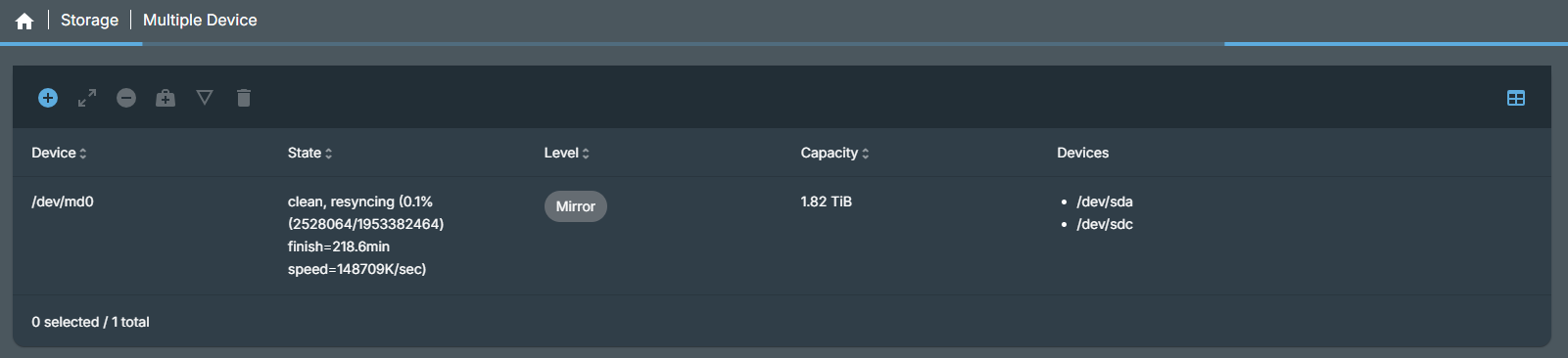
May also check the status of the RAID
user@TechDev-RPI5:~ $ cat /proc/mdstat
Personalities : [raid1]
md0 : active raid1 sdc[1] sda[0]
      1953382464 blocks super 1.2 [2/2] [UU]
      [>....................]  resync =  1.2% (24163328/1953382464) finish=230.7min speed=139364K/sec
      bitmap: 4/4 pages [64KB], 65536KB chunk

unused devices: <none>
Create the ext4 filesystem on the RAID even while resync is in progress
user@TechDev-RPI5:~ $ sudo mkfs.ext4 -F /dev/md0
mke2fs 1.47.2 (1-Jan-2025)
/dev/md0 contains a ext4 file system
        last mounted on Sat May 16 10:15:56 2026
Creating filesystem with 488345616 4k blocks and 122093568 inodes
Filesystem UUID: e13b6ac2-c822-4b72-88c8-c05b72cae4d7
Superblock backups stored on blocks:
        32768, 98304, 163840, 229376, 294912, 819200, 884736, 1605632, 2654208,
        4096000, 7962624, 11239424, 20480000, 23887872, 71663616, 78675968,
        102400000, 214990848

Allocating group tables: done
Writing inode tables: done
Creating journal (262144 blocks): done
Writing superblocks and filesystem accounting information: done
Create the mount point from /dev/md0 onto /mnt/md0
user@TechDev-RPI5:~ $ sudo mkdir -p /mnt/md0
user@TechDev-RPI5:~ $ sudo mount /dev/md0 /mnt/md0
Write the RAID configuration in the systems' RAID config file, and make sure the boot image includes the correct RAID configuration
user@TechDev-RPI5:~ $ sudo mdadm --detail --scan | sudo tee -a /etc/mdadm/mdadm.conf
ARRAY /dev/md0 metadata=1.2 UUID=3a643c69:049623c6:7a0b964d:bad4524e

user@TechDev-RPI5:~ $ sudo update-initramfs -u
update-initramfs: Generating /boot/initrd.img-6.18.29+rpt-rpi-v8
'/boot/initrd.img-6.18.29+rpt-rpi-v8' -> '/boot/firmware/initramfs8'
update-initramfs: Generating /boot/initrd.img-6.18.29+rpt-rpi-2712
'/boot/initrd.img-6.18.29+rpt-rpi-2712' -> '/boot/firmware/initramfs_2712'
Add an entry to /etc/fstab, it tells the system to automatically mount the RAID device on boot
user@TechDev-RPI5:~ $ echo '/dev/md0 /mnt/md0 ext4 defaults,nofail,discard 0 0' | sudo tee -a /etc/fstab
/dev/md0 /mnt/md0 ext4 defaults,nofail,discard 0 0
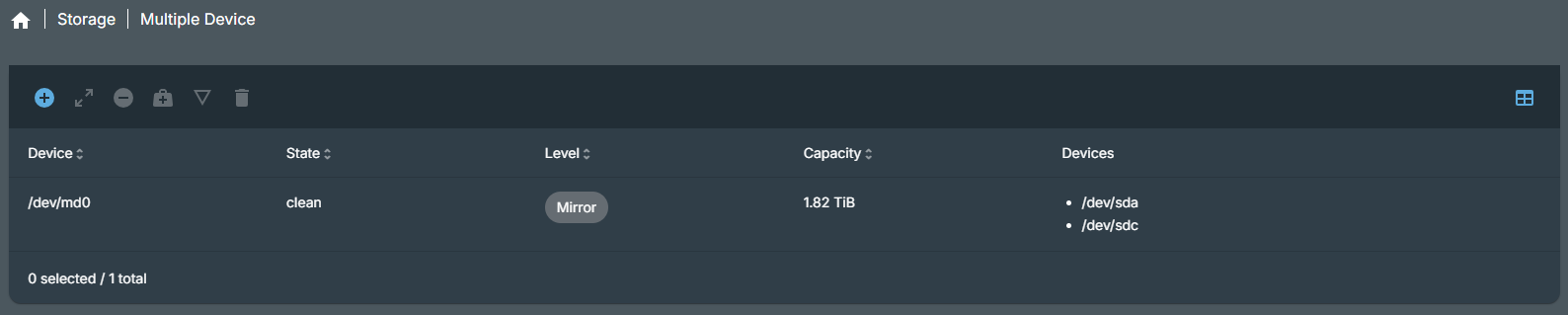
Check the status of the RAID, resyncing is completed
user@TechDev-RPI5:~ $ cat /proc/mdstat
Personalities : [raid1]
md0 : active raid1 sdc[1] sda[0]
      1953382464 blocks super 1.2 [2/2] [UU]
      bitmap: 2/4 pages [32KB], 65536KB chunk

unused devices: <none>
at this stage, we still cannot see the file system / drives are available to mount in OMV let's do the un-mount first
user@TechDev-RPI5:~ $ sudo umount /mnt/md0
Read the OMV's internal configuration database, there is nothing in it
user@TechDev-RPI5:~ $ sudo omv-confdbadm read --prettify conf.system.filesystem.mountpoint
[]
confirm HDDs are in healthy status, no error. In OMV > Storage > File Systems, click 'Mount' icon

the device appears for mount
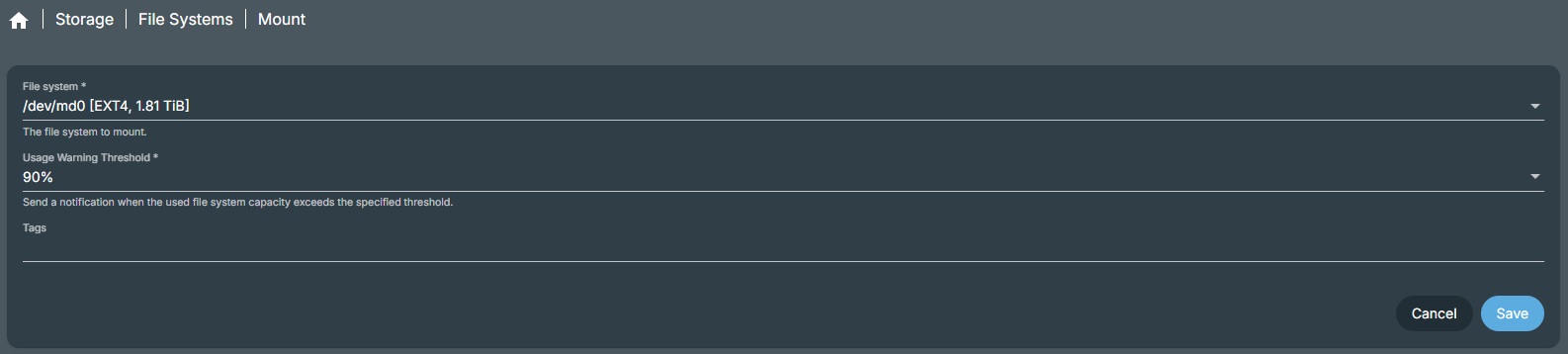
after clicking the Save button and applying the configuration changes, the mount drive is ready in OMV

Verify by reading the OMV's internal configuration database
user@TechDev-RPI5:~ $ sudo omv-confdbadm read --prettify conf.system.filesystem.mountpoint
[
    {
        "comment": "",
        "dir": "/srv/dev-disk-by-uuid-e13b6ac2-c822-4b72-88c8-c05b72cae4d7",
        "freq": 0,
        "fsname": "/dev/disk/by-uuid/e13b6ac2-c822-4b72-88c8-c05b72cae4d7",
        "hidden": false,
        "opts": "defaults,nofail,user_xattr,usrquota,grpquota,acl",
        "passno": 2,
        "type": "ext4",
        "usagewarnthreshold": 90,
        "uuid": "a19d4fc5-8375-4565-8f92-88fda0da268b"
    }
]
Great, the filesystem / RAID 1 mount drive is ready for the next step: enable SMB and creating shared folders!